You open up the text live ap.
You go on google images or on you tube, find a picture or a clip you would like to use as a background, the image must be saved into the screen captures folder.
You must then go into the screen captures folder and grab it into the text live space. You then chose what stuff you would like to do with it. You can firstly put text into the picture. By going to the 'new layer' section and add a new layer into the text. The text should be added and have a specific name of the text and have a exact colour for the text. You can do this by going to the style.
This next bit is showing you all the different layers you can have on TEXT LIVE. You must make sure your on the right layer each time your going to change something. Otherwise it could mess up the other bits of your work. You have to make sure if your changing the picture that your on the yellow strip of a layer. Then the purple is your style, and effects.


The add an effect you have to go the effects button on the media browser:
and you can add an effect but the caricature effects arent as a good as the others, so we were guided too use the other effects and use them on the blog.
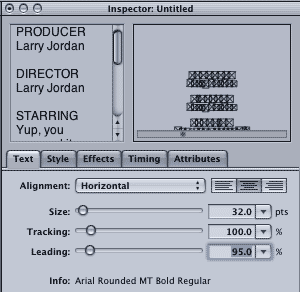
This section is where you can find all the different texts. You can choose from all different fonts that are shown on the page. Then you can look at all the different styles and change the different ones. When you change the text you must make sure all the text on your layer is coloured over with red so you know its all highlighted. You can do this by holding down shift then pressing the first letter then the last letter. If this isn't highlighted in red then this won;t work.

You go on google images or on you tube, find a picture or a clip you would like to use as a background, the image must be saved into the screen captures folder.
You must then go into the screen captures folder and grab it into the text live space. You then chose what stuff you would like to do with it. You can firstly put text into the picture. By going to the 'new layer' section and add a new layer into the text. The text should be added and have a specific name of the text and have a exact colour for the text. You can do this by going to the style.
This next bit is showing you all the different layers you can have on TEXT LIVE. You must make sure your on the right layer each time your going to change something. Otherwise it could mess up the other bits of your work. You have to make sure if your changing the picture that your on the yellow strip of a layer. Then the purple is your style, and effects.


The add an effect you have to go the effects button on the media browser:
and you can add an effect but the caricature effects arent as a good as the others, so we were guided too use the other effects and use them on the blog.
This section is where you can find all the different texts. You can choose from all different fonts that are shown on the page. Then you can look at all the different styles and change the different ones. When you change the text you must make sure all the text on your layer is coloured over with red so you know its all highlighted. You can do this by holding down shift then pressing the first letter then the last letter. If this isn't highlighted in red then this won;t work.


No comments:
Post a Comment